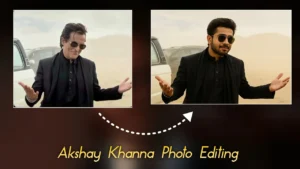
How to Create Viral “Garwa Look” AI Photos on Your Phone (One-Click Tutorial)
Hey guys! In today’s post, I’m going to show you exactly how you can create these trending Garwa Look AI photos on your phone. The same type of photos you’re seeing on the screen—yes, you can generate them too in just one click using a simple tool.
So make sure you don’t skip any part of this blog. I will give you the full step-by-step guide along with all the prompts you need. And yes, all the prompts will be available on my Telegram channel. Just check the link in the description.
What You Need Before Starting
You only need two things:
- A simple photo from your gallery
- A ready-made prompt (available on Telegram)
Once you mix your photo + the prompt, your Garwa Look photo will be generated instantly.
Step 1: Install Google Gemini App
The first thing you need to do is open the Google Play Store. Then search for Google Gemini.
Install the application and click on Open.
External Link:
Download Google Gemini from Play Store
Step 2: Login With Gmail
When you open Google Gemini, you’ll see a clean interface like the one shown in the video. Click on the Gmail icon and log in with your Google account.
Step 3: Upload Your Photo
Click the + button inside Gemini and select a photo from your gallery. This will be the base image for your AI transformation.
Step 4: Get the Garwa Look Prompt
This is the most important part. You need the correct prompt to generate the exact Garwa Look style.
You will find the prompt on my Telegram channel. The link is provided below:
External Link:
Join Telegram (official site)
After joining, scroll to the top of the channel. You’ll find many prompts and images. Look for the Garwa Look Prompt. When you find it, tap and hold the text to copy it.
Step 5: Paste the Prompt Inside Gemini
Now come back to the Google Gemini app.
Paste the copied prompt in the text box → click Next.
As soon as you hit Next, Gemini will start generating your Garwa Look photo.
And boom! Your final image will be ready in a few seconds.
Final Result: Garwa Look Photo
You can see the final result on the screen. This is exactly how your photo will also turn out—clean, beautiful, and stylish.
Using the same method, you can generate unlimited AI photos in different styles.
Bonus: Change Outfit Color or Style
You can even edit the generated photo further. For example, if you want to change the dress color, just type a small prompt like:
“Make the outfit black kurta.”
After sending the command, Gemini will instantly update your outfit. You’ll see the modified image on the screen.
This feature helps you customize your final look easily.
For Girls: Female Prompts Also Available
If you’re a girl, don’t worry. Female prompts are also available on my Telegram channel.
The process is the same—upload photo → paste prompt → generate → done!
Conclusion
So guys, this is how you can create a stunning Garwa Look AI photo on your phone in just one click using Google Gemini. You can also change dress colors, background styles, and more with simple prompts.
If you liked this tutorial, make sure to like, share, and subscribe for more similar guides.
See you in the next video.
Bye bye! Jai Hind! 🇮🇳